How To Install uTorrent on Windows Home Server
I used to use my PC to download torrent files whilst sleeping, but since my PCs are now turned off overnight and Windows Home Server is on 24/7 it seemed logical to install uTorrent onto WHS. The other advantage of installing it on the server was that if more than one of us in the house was using uTorrent it would not cause a lot of traffic on the connection and most importantly by the time you finish this tutorial it will also run without a logged-in user.
Create the New User
First of all we need to create a new user on the server. This is done for security reasons as we do not want to install uTorrent under the default Administrator account. Once this step is completed you may continue with the following.
Install and Configure
Connect via the Remote Desktop Connection as the user you have just created e.g. “WHS” and your newly created password.
Download the Windows Server 2003 Resource Kit Tools and install rktools.exe using the default options.
Next install the µTorrent 1.6.1 Installation Program using the default options.
If this is the first time you have installed uTorrent on your server then a dialogue will appear asking if you want to associate .torrent files with µTorrent. Click Yes. If a Windows Security Alert pops up asking if you want to Block or Unblock uTorrent Click Unblock and if the Speed Guide appears set your Connection Type and the Current Port that you would like to use.
You will now need to forward the port you selected above into your router. Details of router setup screens can be found at http://www.portforward.com/english/routers/port_forwarding/routerindex.htm (select your router and then uTorrent)
In uTorrent select Options then Preferences. Make sure your General screen matches this one:

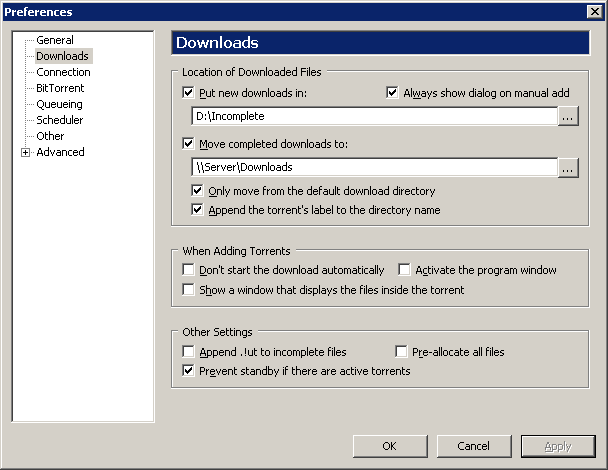
Make sure that your download screen matches the one below. You can change the location for your Put new downloads in but do NOT use a server share. It has to be under a drive letter on the WHS otherwise the Drive Extender Migrator Service will cause data corruption errors as it tries to move the file onto another drive while uTorrent is in the middle of writing to it, or just before uTorrent tries to open the file to write to it again. The Move completed downloads to can be changed to any server share location.
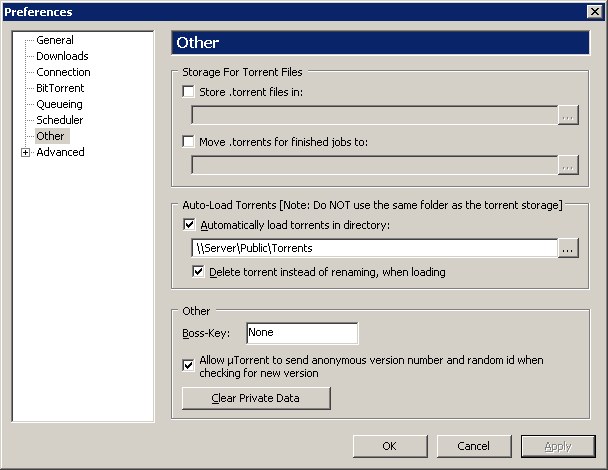
The other screen should match this one. Once again the Automatic load torrents in directory location can be changed to any server share location. This setup enables uTorrent to monitor this specific folder for .torrent files and start downloading them automatically. All you have to do to start a download is place the .torrent file in that folder and uTorrent will do its stuff.
Using the Scheduler tab you can set your downloads to occur during “off-peak” periods by setting up a schedule if you so require.
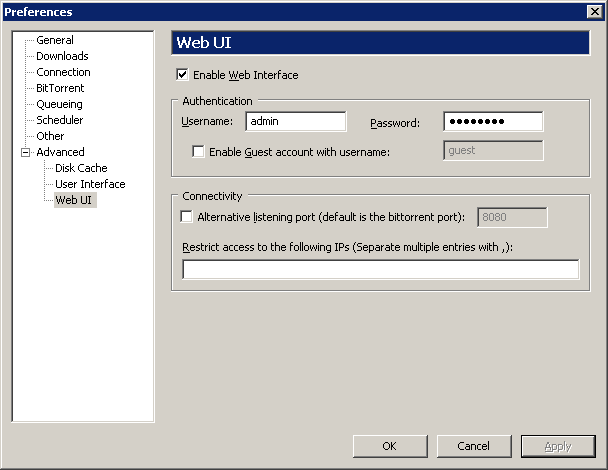
As below, under Advanced Web UI Enable Web Interface and configure a Username and secure Password of your choice.
Click the OK button and close uTorrent.
Next Download the uTorrent WebUI and extract webui.zip from the rar archive.
Click Start then Run and type %AppData%\uTorrent. Place the webui.zip into this opened folder (do NOT unzip it).
Next download the uTorrent add-in for the Windows Home Server Console from here or here. Do NOT run it but place it in your Add-Ins Shared Folder (\\SERVER\Software\Add-Ins). Log In to your WHS console and go to Settings, Add-ins the Available tab and then click Install under “Windows Home Server – uTorrent”.
Once the console re-starts log back in to the console and go to Settings, uTorrent and for Server type in http://YourIP:Port/gui/ e.g. http://192.168.1.110:22345/gui/
YourIP is your server name or IP address and Port is the uTorrent Port that you set up earlier.
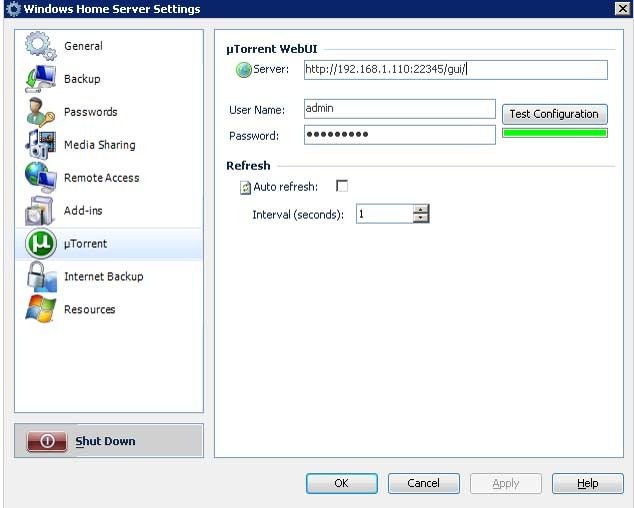
Next insert your User Name and Password as set up earlier. You can press Test Configuration to check all is OK. Red is not and green is fine. You may now OK out of the Settings and close the Console.
Create the User-Defined Service
From your Windows Home Server click Start then Run and type cmd. In the window that opens type the following which is all on one line, including the quotation marks.
"c:\Program Files\Windows Resource Kits\Tools\instsrv.exe" uTorrent "c:\Program Files\Windows Resource Kits\Tools\srvany.exe"
NOTE: Cut and paste will not work, instead highlight and copy the above line and then right-click in the open CMD window and select paste.
Press Enter on your keyboard. Once the screen displays The service was successfully added! you may close the cmd box.
We need to now create a .Reg file using notepad and paste in the 3 lines of code below.
Windows Registry Editor Version 5.00
[HKEY_LOCAL_MACHINE\SYSTEM\CurrentControlSet\Services\uTorrent\Parameters]"Application"="C:\\Program Files\\utorrent\\utorrent.exe"
When saving make sure that Save as type is set to All Files *.* and save as service.reg. Double click on this saved file to import the settings into the registry on your server.
Now click the Start button and then select All Programs, Administrative Tools and then Services. Find uTorrent right-click and select Properties.
Select the Log On tab. Click the This account button and enter
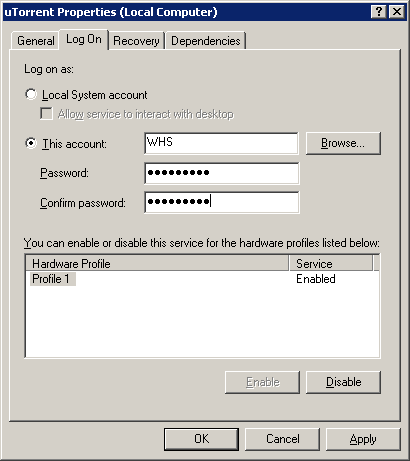
OK out and close the Services dialog.
Click Start, Shut Down then Restart.
That’s it job completed. You can now connect to uTorrent either via the web interface using your browser using the format http://YourIP:Port/gui/ or via the WHS console (uTorrent heading).
All you have to do to start a torrent download automatically is place the .torrent file in the \\SERVER\Public\Torrents folder and forget about it.
P.S. Whose of you with Windows Vista may like to know that there is a sidebar gadget called µTorrent Stats that enables you to Start, pause or stop any torrent and allows you to view the stats and files for each torrent separately, all from the desktop sidebar within Vista.
Share this WHS Article with Others:




Wow, that’s a lot of stuff. Now that I have a Antivirus installed on WHS I will install uTorrent this week. Never used uTorrent before to dL torrents.
Two questions:
1. Why do we need the uTorrent WebUI is that simply to give a web interface separate from the WHS console?
2. When first logging on to create the User-Defined Service-do you log in with the Main WHS Admin account or the newly created WHS account to run third party services?
Oh, almost forgot… Excellent “How To,” Phillip! Very thorough.
Hi TheJudge,
1. You are correct the uTorrent WebUI is simply to give a web interface separate from (and as well as) the WHS console.
2. You create the new user “WHS” from the Administrator account which you then log into to install, configure and setup the service.
Hope that makes sense.
Philip,
Sort of. … Please Clarify.
2.–What I mean is after the new user WHS account is created….and now I need to set up uTorrent as a Service…..under which account do I set up the uTorrent Service? My original WHS Admin account or the new WHS account for use with uTorrent? I think you mean the NEW WHS account… 😉
Hi TheJudge,
When you set up uTorrent as a service you do it under the new “WHS” account and NOT under the “Administrator” account.
Thanks, Philip. That’s what I thought. 😉
Works nicely and your guide is perfect!
Thanks!
thanks Philip for the guide.
I do come accross a problem with the new user. I have followed the create new user to the letter but when installing the rktools.exe, it tells me I do not have appropriate permissions. Do you have any ideas? (It installs under the normal admin account, but ofcourse I do not want to do that.
Also a question for TheJudge: Can you recommend a virus software?
many thanks
Jaap
Hi Jaap,
Are you trying to run rktools.exe from your “Shared Folders”. If so move it to your desktop in WHS and run it from there. If that does not work download it from within WHS and then run it again and all should be ok.
Hi Philip, thanks for the tip, it finally installed ok by downloading from server and installing from there. I created all directories and named as you suggested, but I havent figured out yet why the download does not start (or show up in the GUI or app) after I dump a torrent in the Torrents subdirectory on the public share. Hope I can benefit from your wisdom once again!
All working now. Selecting torrent directory through the search button rather than typing did it. Absolutely fantastic. Philips thank you for the help and thanks Marcel for the add in!!
Hi Jaap,
Glad to know that it is all working OK.
Japp,
Philip has a nice posting and some of my results here https://www.mswhs.com/2007/06/26/more-anti-virus-software-for-whs/
Click it and you will see which ones are avail and the one I and Philip choose and the tweaks.
Philip, FYI some of your postings are getting hard to find. Not sure why.
Hi TheJudge,
Its because I am posting more and more that things are getting harder to find so I shall add a Top Posts and Recent Comments section to the left column.
Be aware that WebUI doesn’t support IE6 and also doesn’t work with uTorrent’s UPnP, so you’ll have to go in and manually open that port.
http://www.jasonpaterson.com/technology/how-to-install-webui-utorrent/
Hi Etruscan,
Great advice, thanks.
The issue with IE 6.0 is resolved if you accept the critical update for WHS which installs IE7.0.
WebUI works fine in IE 7.0. 🙂
Hi Solderman,
Thanks for mentioning that. It does indeed work fine in ie7.
I really like when you click a torrent file on a website and it starts to download in utorrent automatically.
To get this on the WHS you could do this on the client:
Type this in BAT script ( ex WHSTorrent.bat ):
@copy %1 \\your server name\torrent folder\
Associate the filetype .torrent with the script, in the example it is WHSTorrent.bat.
If your browser is configured to open .torrent files automatically it should now be copied to your server and as utorrent is monitoring the folder it starts to download.
I bet you could do this in a better way or maybe in a another scriptinglanguage. I’m just a novice at scripting.
Hi Jimmy,
Thanks for the great tip, it makes downloading torrent files a lot more convenient.
Quick question, is that OK to create a directory called d:\incomplete on the ‘D’ drive of the server? Might sound like a trivial question but the thing is that WHS is a bit temperamental about its file structure…
Hi Pedro,
Creating a directory called d:\incomplete on the ‘D’ drive of the server is fine.
Do I need to use a drive letter if I only have one drive? Since the data corruption bug probably won’t matter then?
Thx
Louis
Hi,
thanks for a great “HOW TO” – I did it and it all works fine – only problem is uTorrent only seems to be running when my WHS account is logged in – when I log out it stops and I can’t get in from the WEBUI – if I log back in again it starts up and I can log in from the UI – Any ideas?
uTorrent is started as a service on the WHS box with the “WHS” account login details
TIQA
Tim.
Where can i find the uTorrent add-in for the Windows Home Server Console. I have everything except that. can someone send it to me or tell me where i can download it. Please help me.
/ Philip
Hi Philip,
The uTorrent add-in can be found under the Add-In List tab at the top of this site.
Hello Philip,
But no one works. Do you have it? Do you have any ide from were i can find it. Need help, please
Philip,
Just tried it and the link works. You want Add-In List between About and Contact above.
Hi again Philip,
Sorry about that. Yes it workt. Thank you
Do you know if by turning on the server to start utorrent with out doing anything.
Thank you
First of all, thank you for the wonderful writeup Phillip. It was a great help to me in getting utorrent set up right.
That being said, the issue of using administrator was brought up earlier on this thread. I got a home server a couple of days ago and was tinkering with getting it to run on a non “Administrator” account and I figured it out.
See link below for a brief overview on how to do it
Its probably already common knowledge but I’ll post anyways.
http://www.wegotserved.co.uk/forums/index.php?showtopic=337&st=0
I take that back. I ALMOST got it to work. If works if modify permissions but the minute you reboot, WHS reassigns all permissions for all folders to match the console preference. Basically this means that you cant transfer files from the “temporary downloads” folder to the share folder.
If you create your own share folder independent of the console via Server 2003 network it should work or you have to burn an account in the WHS console so that every time the system reboots the permissions are set properly. Kind of a pain in the butt…I dont understand why WHS needs to reset permission every time it reboots, seems a little excessive to me.
links to WHS add-in doesn’t work
Couple of questions if you don’t mind
-Can you setup RSS feeds that will auto download torrents (obviously uTorrent has this ability, can you make use of it after installing onto a WHS)?
-The other thing, when you setup a filter for a RSS, you can select what folder the torrent gets downloaded to, can you set this to a share? (and is the share corruption issue due to the data corruption issued that has been fixed with PP1-RC1? i.e. will we ever be able to get around not being able to save torrents directly to a share?)
Hi Phillp,
Your quide was the clearest I have found, thanks a bunch. I only have a few questions which I am not sure how to handle. I completed your setup to the letter and used the exact suggestions you had in the examples except for the passwords and my server IP and port number. The only problem is that the consule interface does not work, and neither does the webGUI. When I use either of them the show absolutely no downloads even though one is running in an RDC session.
I used the following format in the uTorrent Add-In under settings.
http://192.168.1.103:11098/gui/
Which maps to my server internally and to the port. When I test I get a green bar so that should be fine, and when I RDC to the server as either the WHS or my user account the port comes back as open during the uTorrent installation. That leads to my next question. Should I intall uTorrent under the WHS, Admin or my user account and which is actually running when I close the console or RDC? To be safe I installed the program under them all, but only tested it under my user account. In the WebUI in the Add-In do I use this IP or my phantom IP for the server from TZO?
Is it because I need to do the RDC with the WHS user, or should I use the Administrator or my user account? I am a little lost here.
Hey Phillip..
I have tried to download the utorrent msi file via the links that you refer to… but unfortunately none of the links works… Do you have a sulution for this??
Many thanks
Hi Phillp,
Everything works great now. The only thing that it took me a while to figure out was that if I have uTorrent installed as the WHS service account and also under a user only the torrents downloaded via the WHS account showup in the GUI or the Add-In. Excellent guide once again.!!!
Hello. I think you are eactly thinking like Sukrat. I really loved the post.
hi, just incase anyone is wondering ive found a way to get homeserver downloading torrents via rss feeds automatically.its not a perfect method but untill rss is implemented in webgui it will do. Basically what i did was install utorrent onto one of the client pcs on my network and set it up to never download using built in scheduler,then i set it up to store its torrents in the autoload directory for utorrent on the homeserver.now any rss feeds setup on my client pc will start downloading automatically on server,it works quite well .also you only have to click the download torrent link on a torrent site and it loads up on homeserver via local utorrent program.also any torrents in local utorrent program can be removed as soon as they are loaded and the program closed until downloading next torrent.hope this helps someone or maybe somone has a better way of doing it?
Dear Phillip
thank for valued tip.
I have problem when stop service.
when I start it again , it checking the torrent like service is abnormally stop.
Do you found same problem?
The user running the “torrent service” don’t have to be a administrator on the WHS as specified in the “create a new user on the server” guide.
Instead just make the torrent user member of “users” and give it NTFS modify security permissions to:
c:\program files\utorrent
d:\downloads (or whatever your download folder is called)
folder where .torrent files are located.
folder where incomplete files are located.
Hi, i can´t get the “auto move” or “auto import torrent” to work. I put the torrent file in a folder who i choose in utorrent. But then nothing hapends. i have to manually “add torrent” to utorrent. Why is that?
mvh Björn
Thank you very much for your valued tips.. It does help me…
Philip,
Everything works great now. Excellent guidance! Thanks once again
Newest version of webui:
http://forum.utorrent.com/viewtopic.php?id=45325
The old link needs to be updated.
I have something wierd going on, I add all my torrents the same way:
1) Download .torrent
2) Copy .torrent to /Public/Torrents
From there it’s automatically loaded into uTorrent for downloading/uploading.
But for some reason not all the active torrents are showing up in the WebUI or in the uTorrent add-in. But when I remote desktop into the server and open up uTorrent all the torrents are there.
Any ideas?
@iain – Same problem here. Have you found a solution?
Thanks for this guide.
I’m new to WHS and was wondering what all the fuss was about. But I can certainly see the benefits of it now.
@iain – also having this problem.
Torrents downloading fine but unless I manually add them in webUI or WHS console they dont appear in either of those.
How to fix this?
Ok i fugured out that uTorrent will not auto-load torrents that are created by another user:
-If i log into \\Server\Torrents from my PC with my PC account and save a torrent file, the file will not be auto-loaded and will not appear in webUI
-If I log into \\Server\Torrents from the PC with the user account that I am using to run uTorrent (ex: “WHS”) the torrent file WILL auto load then appear in webUI
is there anyway to make uTorrent open torrent files that were not created by “WHS” ?
Sorry, I had tried to reply a while back and it wouldn’t let me.
The problem is with the logged in users at the server itself. You can’t be logged into the server through terminal services as a new user when you add the torrents.
It won’t let me put the link in my post…
“Log off (Don’t simply disconnect) all users on the server.
Then go Start -=> Run -=> mstsc /console
And then log in.
When you remote desktop into a windows server version without /console it creates a NEW user session. You can see this when you open the Users tab on the Task Manager in the remote session. You’ll see your username twice. This also means a second session of µtorrent was started which will fail to listen on the utorrent port (check the logger tab of µtorrent) because the original µtorrent session is listening there. Which means the webui still connects to the first µtorrent session while your remote desktop session is looking at the the second µtorrent session.”
Thanks! This is my first hands on with my WHS and it gave me a good insight in its workings.
Works perfect
thanks for clear information… I`ll trying to download uTorrent
The WebUI 0.310 link is not valid. CAn anyone repoint me in the right direction please as l cn not find the files anywhere!
I followed the guide and uTorrent is installed on my windows home server and is working nicely. However I was wondering what the point of having the uTorrent installed into the console is. I have the application running as if it were in windows 7, and it is down in my taskbar. I can maximize it from there and mouse over it to see my dl/ul speeds etc. When I put torrents into my folder that I have utorrent watching it then sends the command to either my console utorrent or my full app utorrent. For instance if I put 5 differerent torrents into the folder im having uTorrent monitor, the first 2 will be processed by the application and the final 3 will be processed/shown by the uTorrent instance in my home server console. Whats the point of having it in both places?
This should also work with the latest stable release of µTorrent (1.8.5 at time of writing) and the latest WebUI WIP build (WebUI v0.370 WIP at time of writing) available in a sticky on the µtorrent Web API forum.
I have problems instaling the utorrent as service. I don’t get the ENUM in the registry and I’m not able to start the service. (error code 1053) I had to change the syntax a bit and added the location of the utorrent.exe “instsrv uTorrent “c:\program files\utorrent\utorrent.exe” srvany” otherwise I got an error indicating I had to specify the path of the exe.
Where have I gone wrong
i am having a similar problem. can’t get the reg file to load. i am not extremely familiar with this part of computing so any very explicit help would be greatly appreciated.
WHS-utorrent or uTorrentplus (uTorrent client for Windows Home Server) v.1.1.1.0 does not work with uTorrent 2.0. I hope there will be an update soon.
Guys, have same problem as Jaap within installation of RKTOOLS.exe. Have tried downloading within WHS but still do not get permission to install it. It states that Admininstrator has not set up rights for this account to do so. Help !
Hi!
Have problem with the GUI on my web browser. Have tried Firefox, chrome and explorer. It comes to “loading” then nothing happens on all browsers. I use the utorrent 1.6.1
Is this to old for the gui or what.
I like to reach the preferences in utorrent to set up a scheduler so I only download at night. But Because of not reaching the gui I can’t do the setup. Any Idea? the setup in utorrent is the main thing. Can I do it someother way?
Thank’s in advance
Roger
whenever I try to test configuration in the uTorrent add-in it’s red and i have tried everything. can someone give me a hand?
How do I install these programs without Remote Desktop?
Iam using the same setup in windows xp, but while restarting the system utorrent is behaving like crashed and reopen, its not having the download list which i have added already.
When i ran as normal windows mode after stopping the service its working fine.
have any one faced this and hv solution?
I installed uTorrent using Remote Desktop but cannot install the web GUI or download a torrent file using the server due to “security restrictions.”
Any idea what I am doing wrong?
I’m running uTorrent on my Vail box. The updated instructions are available at http://pravesh.me/installing-utorrent-on-whs-vail-as-service/
I’ve got a permission problem… is there a way to automatically give the all users full access on the completely downloaded files in order to open them with all accounts?
Actually my downloaded files get only full access for administrator group!
I have the same problem. Did you find a solution?